
Creating and managing an organization
The organization features let you centrally manage your employees’ competencies on Dokimazo. Here you can create Qualifications, define target skills, validate them with the help of designated leads/reviewers, and finally assign them to employees.
What is an organization in Dokimazo
An organization in Dokimazo represents your company or institution. Within it you can:
- create Qualifications (company roles) and define target skills;
- involve a Reviewer/Lead for qualification review;
- assign Qualifications to connected employees;
- monitor skills and competency gaps;
- record company evaluations on skills (where applicable).
Organizations are managed by Talent Leads or users with administrative permissions.
How to create your organization
You can create a new organization directly from your Skill Wallet. In just a few steps, your company dashboard will be ready to use.
- Open the user menu at the top right.
- Select Create organization.
- Enter the company name and basic details.
- Click Save: the organization will immediately appear in your dashboard.
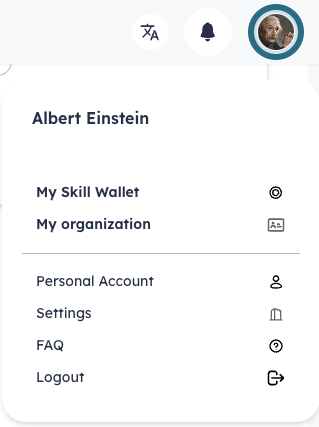
After creation you can:
- invite colleagues to join the organization;
- create Qualifications with target skills and a Reviewer;
- assign Qualifications to connected employees;
- edit or revoke existing Qualifications.
Roles and permissions in the organization
In Dokimazo, roles aren’t assigned from a settings panel—they’re derived automatically from how the platform is used. Each action (creating an organization, inviting a reviewer or an employee) automatically defines the person’s role.
Main roles
- Talent Lead: the person who creates the organization. Has administrative permissions, can create Qualifications and invite other members.
- Qualification Reviewer (Referent): appointed by the Talent Lead from users already connected to the organization; if they accept, they are the reviewer only for the assigned Qualification.
- Connected Employee: invited by the Talent Lead or the Reviewer to receive a Qualification; by accepting the invite, they join with this role.
Helpful rules
- Roles are generated automatically based on the type of invite/action.
- There is no panel to manually edit roles.
- The same user can hold multiple roles (e.g., reviewer for one Qualification and employee for another).