Adding people to the organization
Add one or more people
To request a review or assign qualifications, you must first invite colleagues or collaborators to join your organization.
First, check if your colleagues are already registered on the platform:
- Go to the People section.
- Click the Request connection button (at the bottom).
- In the Search people in Dokimazo layer, you can search among all registered users for the people you want to invite.
💡 You can also search for a person by email address in the search box. This way, if there are two people with the same name, the one linked to the email address you have will appear, and you won’t risk sending the wrong invitation!
If the people you want to invite are not yet registered:
- In the Search people in Dokimazo layer, click the button on the right "Invite to Dokimazo". A window will open where you can enter the name, surname, and email of the people you want to invite. They will receive an email invitation to register.
- Enter the email address of the person you want to invite.
- Repeat this process for each person you want to invite to Dokimazo.
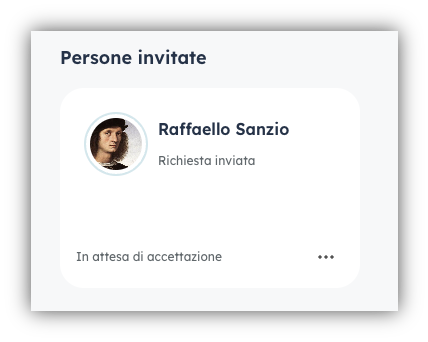
Once the people have been invited, they appear below in the box dedicated to invited people, showing as pending acceptance:
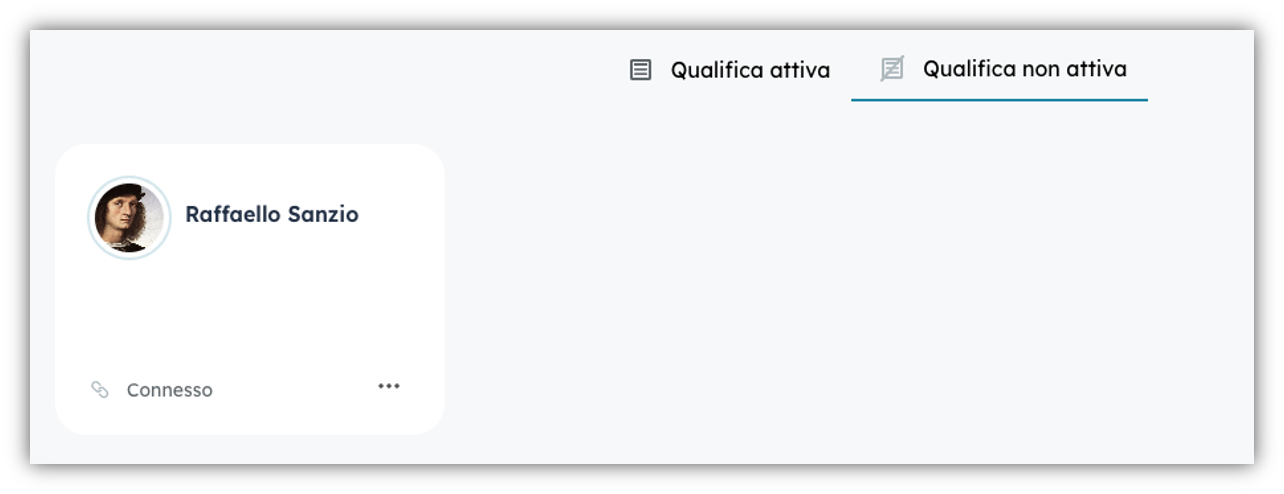
When the user accepts the invitation to connect with the organization, the Talent Lead receives a notification, and in the People section, the user will appear in the Inactive qualification tab, ready to receive a qualification or be invited as a Qualification Referent.
Connecting with a collaborator does not automatically grant access to their skills or share any data; it simply enables the possibility to do so later. It is not possible to assign a qualification or a skill to a user who is not connected to the organization.
Disconnecting a person from the organization
You can disconnect a person from the organization at any time. There are several ways to do it.
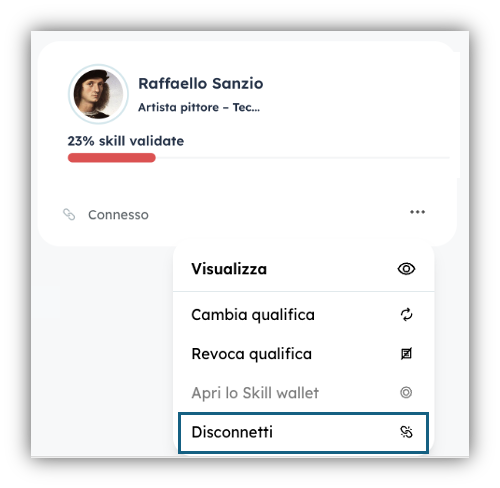
From the person’s card:
- Click the three-dot menu in the bottom right corner.
- Select Disconnect.
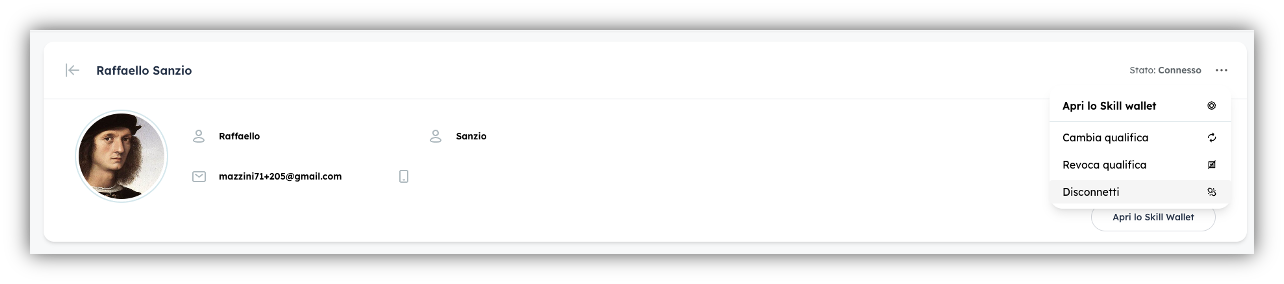
From the connected person’s detail page:
- Click the three-dot menu in the bottom right corner.
- Select Disconnect.
What happens after disconnection
After a person is disconnected from the organization:
- All non-confidential skills assigned by the organization and validated remain in the Wallet along with their associated evidences.
- All confidential skills assigned by the organization and validated disappear from the Wallet. However, the evidences linked to those skills are not deleted if they are also associated with other non-confidential skills shared between the organization and the Wallet owner.